



Managing events in WooCommerce is one thing, but hosting recurring events on Google Calendar efficiently is a different challenge altogether.
Handling recurring events on Google Calendar is simple. The problem arises when you have to sell those tickets on WooCommerce. It is very important to select the third-party extension that makes this integration seamless for your events. Managing multiple sessions of the same event manually can create unnecessary workload for admins, missed entries, and inconsistencies in availability.
Without the correct setup, managing recurring events can quickly become overwhelming.
In A Hurry? Here’s A Brief Summary…
- For recurring events in Google Calendar to work effectively, merchants need a structured integration with WooCommerce bookings.
- When a merchant manually creates repeated events in WooCommerce, it leads to inconsistencies, higher chances of errors, and time loss.
- When recurring events are managed accurately, it improves customer experience by ensuring correct schedules and seamless event bookings.
- A centralised workflow helps in syncing your schedule (events on Google Calendar) with your sales (WooCommerce).
- Recurring events offer significant benefits, mainly saving time, increasing efficiency, and fostering consistency for both attendees and organisers.
- Regularly scheduled events build trust and provide a predictable structure for attendees to plan.
In this blog post, we will cover what recurring events are, their use cases, how Event Tickets Manager helps set up recurring events in Google Calendar, and more.
In This Blog, We Will Talk About…
(Jump to the section that interests you the most!)
What Are Recurring Events?
Before we jump into the nitty-gritty of recurring events on Google Calendar, let us understand the basics first: What are Recurring Events? They are events that repeat automatically at defined intervals, instead of being created each time manually.
In simple terms, if you host online classes for students, this functionality is a saviour for you.
How? Say, you take classes for a particular subject once a week. Previously, you had to manually create the event for the same class every week and share it with your students. After setting up recurring events on Google Calendar, this process will be automated.
Let us also understand how recurring events work –
- Start Time & End Time
- Specify the repetition pattern (Daily, Weekly & Monthly)
- The number of recurrences for the event
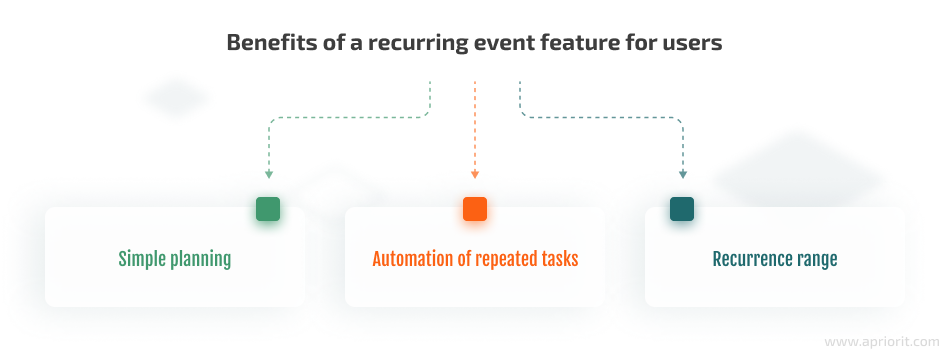
The mentioned are the benefits of a recurring event for users –
When you integrate recurring events with WooCommerce, it allows you to –
- Create multiple events in a single setup
- Maintain a uniform ticket availability and pricing
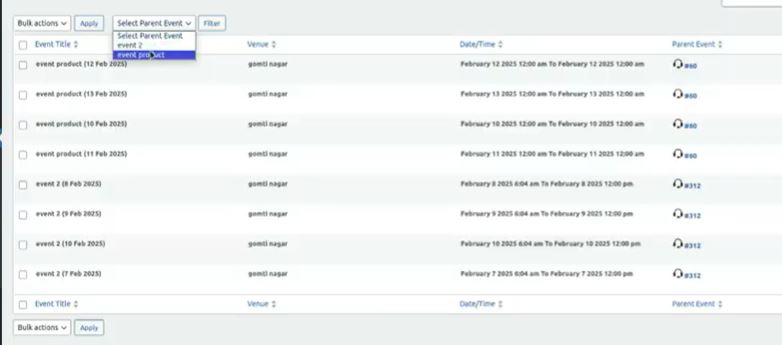
- Use the “Event Parent” filter to see all the recurring events under that particular event, and merchants can also view/edit any recurring events utilising the filter.
Now that our readers are well-versed in the concept of recurring events, we are
ready to understand the use cases of such events.
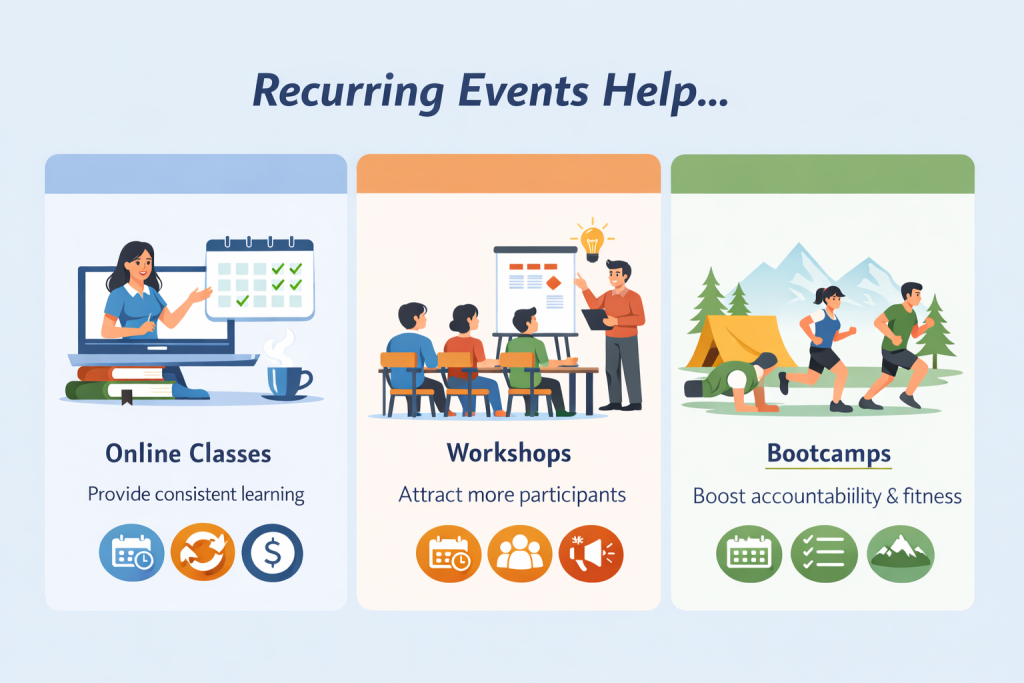
How Do Recurring Events Help Classes, Workshops, & Bootcamps?
Understanding the concept of recurring events is not where the value lies; it lies in how they apply to different events. Whether you take online classes, host periodic workshops, or manage intensive fitness bootcamps, recurring events on Google Calendar simplify scheduling, reduce inconsistencies, and eliminate manual efforts.
Don’t worry, we will not bombard you with all the information at once. We will break it down by each use case.
1. For Online Classes
Imagine you run an e-learning website. Recurring events on Google Calendar are extremely essential for you. These allow you to follow a fixed schedule; i.e., daily, weekly, or monthly lessons.
How are recurring events on Google Calendar beneficial for e-learning websites?
Let’s unveil together –
- Automated Session Creation: Eliminates the need to manually create classes daily or weekly.
- Uniform Availability & Pricing: Recurring events on Google Calendar help in setting up uniform pricing and availability across all platforms.
- Smooth Experience for Students: The students can easily see their upcoming classes and choose their preferred time slots.
2. For Bootcamps
Imagine you are a fitness coach, wanting to run a 4-week transformation bootcamp with sessions scheduled every Friday, Saturday and Sunday. Each program of the bootcamp has specific availability, pricing, and progress plan.
For normal scenarios, you’d manually create 12 separate sessions for each batch, where the pricing and availability were uniform. Customers found it difficult to track all sessions individually, causing chaos there as well.
Enter recurring events on Google Calendar. Let’s discover how it’s beneficial for bootcamps.
- The coach can create one bootcamp event with defined intervals (3 or 4 days a week for 4 weeks)
- All the sessions are automatically created based on the specifications.
- Ticket settings were also applied uniformly across all the sessions.
- The full schedule for the bootcamp was displayed to the customers and the coach.
Recurring events on Google Calendar simplify the complex, multi-session bootcamp scenario into a simple one and a manageable workflow.
3. For Workshops
Imagine hosting a 3-day crochet workshop scheduled for Saturday, Sunday, and Monday.
Without recurring events, the instructor had to create a new workshop link for each session. That meant repeated setup of the same details (capacity, pricing, and timing), and the risk of missing a session or adding incorrect information.
With a recurring event on Google Calendar –
- A single-parent event for the workshop with a weekly recurrence rule.
- Future workshop sessions automatically scheduled
- Standardised pricing and seating rules for all sessions
- Attendees can view the details of the upcoming event bookings, and organisers can see all the recurring events by segregating them using the filter.
Recurring events on Google Calendar make workshops easy to manage and predictable for both organisers and attendees.
How Does Event Tickets Manager for WooCommerce Help?
Let’s start by understanding what a WooCommerce event management plugin is: it’s an extension to manage ticketing and event coordination within the WooCommerce platform.
Events Tickets Manager for WooCommerce Pro streamlines the process for merchants to create and customise event tickets, offering layout options and supporting recurring events on Google Calendar. It allows seamless delivery of tickets to customers via email, adds a new product category to the store, and makes it easy for merchants to add new events.
WooCommerce Events Calendar also ensures that timely notifications are sent to customers before scheduled events. Within the dashboard, merchants have access to a user-friendly interface to personalise ticket content and distribute it via email effortlessly.
Event Tickets Manager for WooCommerce conveniently sets the recurring date and time for any event. The event can recur daily, weekly, or monthly in the selected time slot.
Want to get an in-depth look at recurring events on Google Calendar? Let’s unravel it together, as we said, we will take it one step at a time.
How To Create Recurring Events In Google Calendar?
After successfully setting up Event Tickets Manager for WooCommerce on your WooCommerce store.
This is how you will add recurring events on Google Calendar –
- The first step is to configure all the related settings through the General Settings tab of the WooCommerce events plugin.
- After doing so, navigate to the Integration tab and enable the Google Meet integration settings. The event tickets plugin is integrated with Google Meet for Event Products. This enables admins to allow customers/participants to attend online events through the G-Meet link.
- After the successful integration of Google Calendar, enable the settings on individual products as well.
- Now, under product settings, navigate to settings dedicated to the event products.
- Here you will see the recurring settings.
- Event Recurring Settings
- Check the box to add the recurring settings to your existing events.
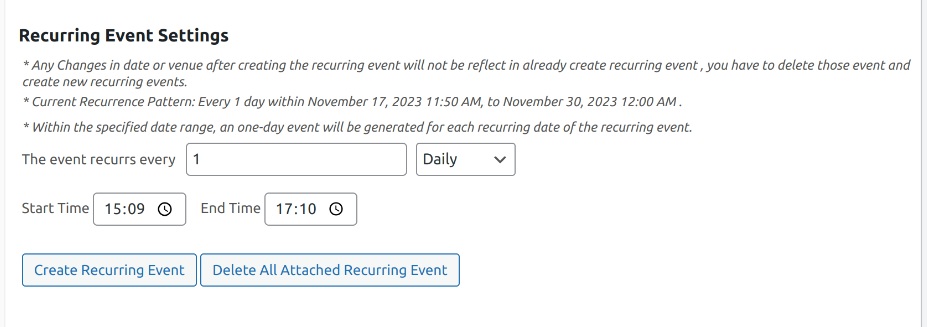
- After clicking on the checkbox, this setting you will automatically see these settings.
- Here, the organisers can select the intervals for the event to recur.
- They can also select whether they want the event to recur on a daily, weekly, or monthly basis.
- They are also given the option to either delete the attached recurring event or create a new one.
- They can also select the time slot for the recurring events. They can put the start time and the end time as per the requirements.
- It is also interesting to note that these recurring events will only recur within the specific date range that you have already selected for the parent event.
- With the event filter, the admins can use the “Event Parent” filter to see all the recurring events under that particular event, and merchants can also view/edit any recurring events using the filter.
Still Confused About The Functionality?
Frequently Asked Questions
1. What is a recurring event in Google Calendar?
A recurring event in Google Calendar repeats automatically at defined intervals, instead of being created each time manually. Say, you take classes for a particular subject once a week. Previously, you had to manually create the event for the same class every week and share it with your students. After setting up recurring events on Google Calendar, this process will be automated.
2. Can I add recurring events in Google Calendar?
Yes, you can add recurring events in Google Calendar with Event Tickets Manager for WooCommerce. The plugin’s seamless integration with Google Calendar also has dedicated settings for recurring events.
3. How does Google Calendar handle recurring events?
Google Calendar can effectively handle recurring events. The organisers need to ensure that the extension they are installing to run their online event website is compatible with Google Calendar and recurring event functionality.
About the Author: Muskaan Sabarwal